porthole


Porthole is a native Windows desktop dashboard for WSL Containers.
It uses a WinUI 3 application for the UI and a tray-hosted backend for container and image operations. The app and tray communicate over named pipes using typed JSON contracts in Porthole.Core.
Table of Contents
- Installation
- Features
- Feature Details
- Projects
- Documentation
- Prerequisites
- Architecture
- Build
- Run
- Development Notes
Installation
Windows Package Manager (winget)
Porthole is available on Windows Package Manager. Install with:
winget install celloza.Porthole
To upgrade an existing installation:
winget upgrade celloza.Porthole
[!NOTE] Current Porthole releases on winget are pre-release (
-alpha) builds, sowinget upgrade celloza.Portholecan reportNo applicable upgrade found.When updating, install the target pre-release version explicitly instead:winget install celloza.Porthole --version <version> --architecture x64 --forceReplace
<version>with the pre-release version you want to install, for example0.0.10-alpha.
Manual Installation (MSI)
Alternatively, download the .msi installer from GitHub Releases and run it directly.
Features
Implemented:
- ✅ Dashboard: real-time system metrics and container status
- ✅ Images: pull, tag, and delete container images
- ✅ Containers: start, stop, and remove containers
- ✅ Sessions: create and manage isolated session environments for workload grouping
- ✅ Tray Flyout Quick Switch: left- or right-click the tray icon to open a compact session switcher with session actions
- ✅ VS Code Integration: Docker-compatible API bridging for the Containers extension plus a Dev Containers CLI shim
- ✅ Networking: configure network mode (bridge vs. consomme) and inspect active port bindings and host proxy configuration
- ✅ Volume Management: inspect named volumes and bind mounts, surface virtiofs telemetry, and create/delete/prune named volumes
- ✅ Run Wizard: interactive container creation with template save/load, port mapping, environment variables, and volume configuration
- ✅ Settings & About: in-app appearance switching (System/Light/Dark) and build/version details
Planned:
- 🔒 Enterprise Governance: MDM registry allowlists, Defender for Endpoint integration, audit logging
Feature Details
Dashboard
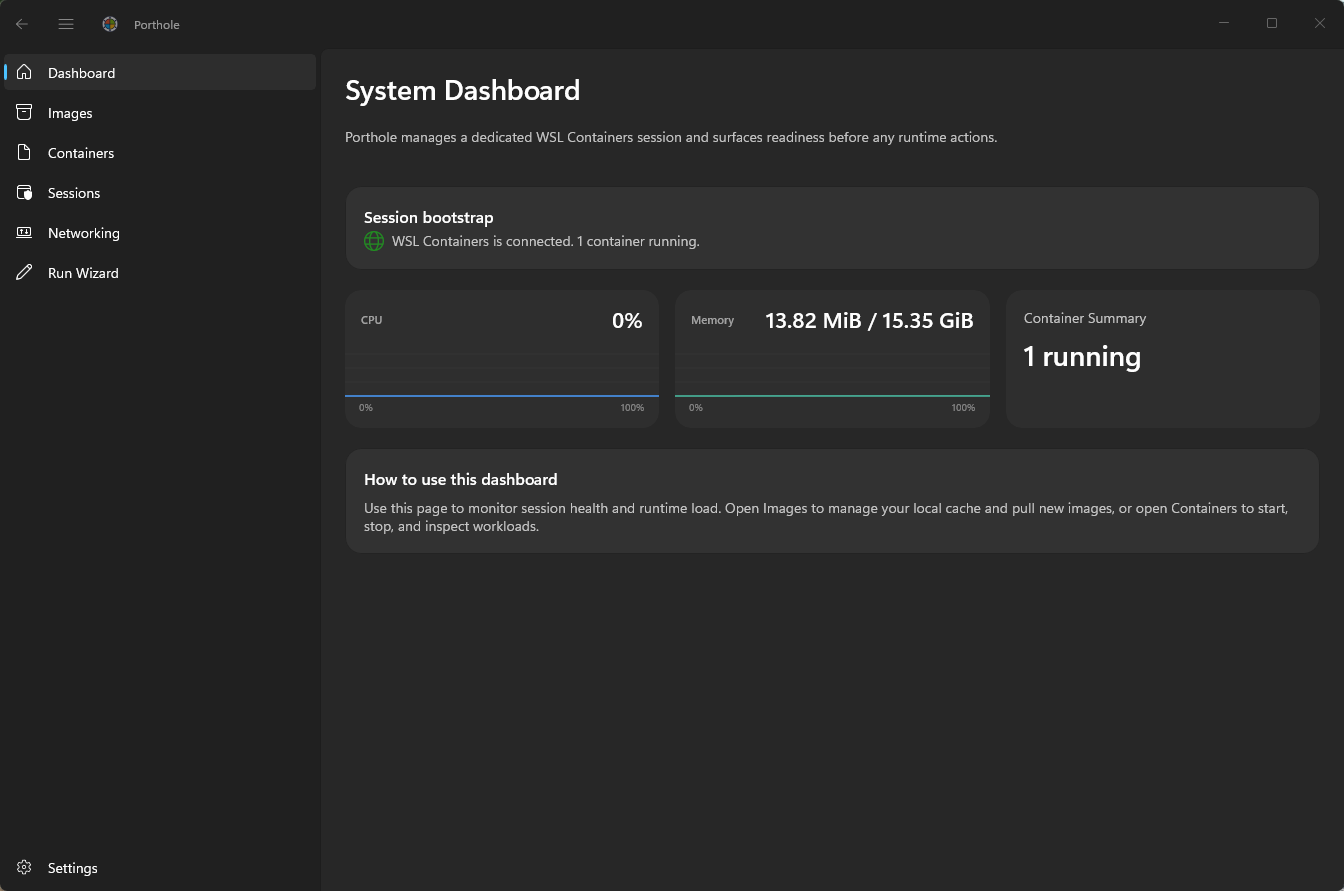
Real-time overview of system status and container inventory:
- Active container count and status breakdown
- System resource utilization
- Quick-access container controls
Images
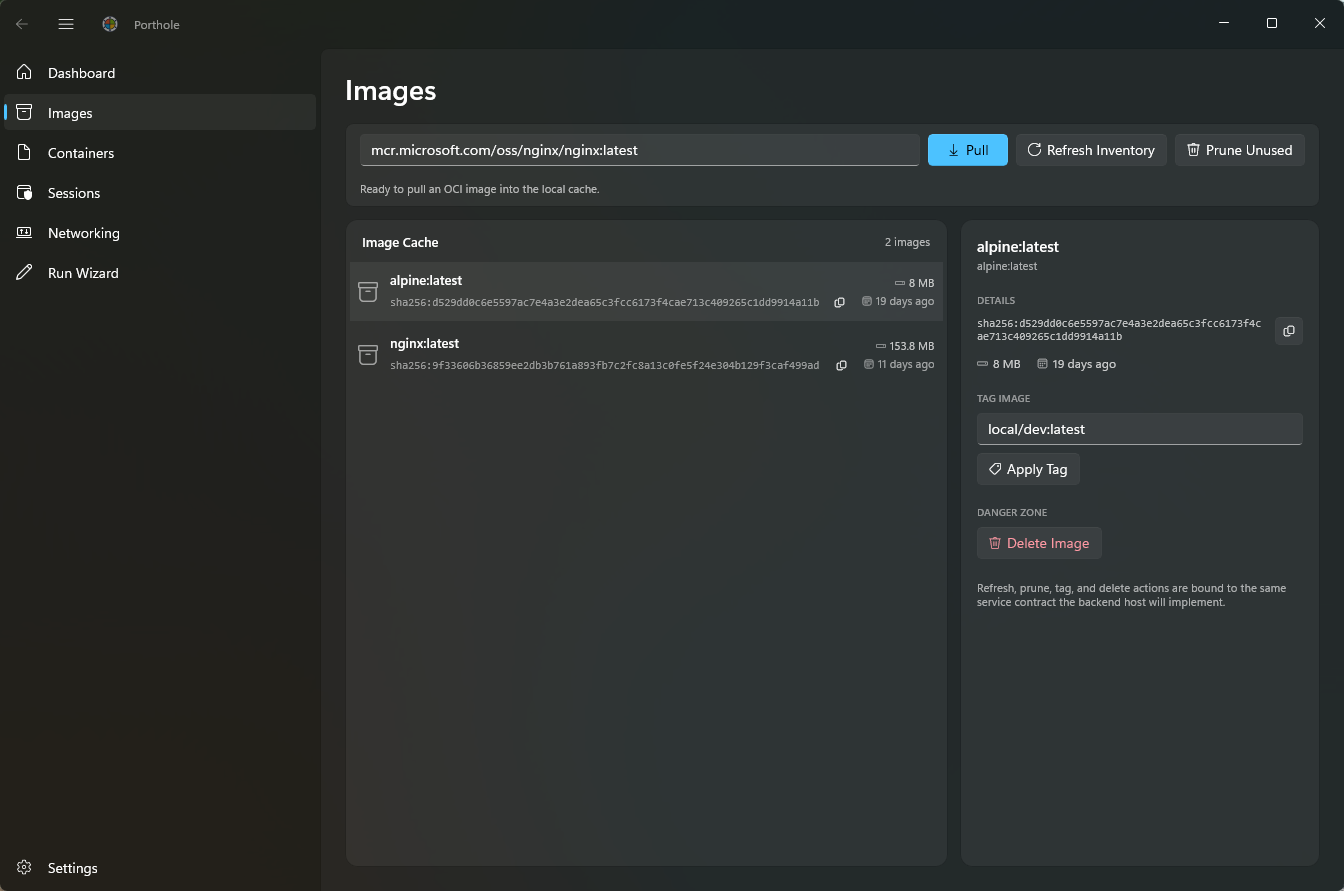
Manage container images in the active session:
- Pull: fetch images from registries with progress tracking
- Tag: apply custom repository and tag labels
- Delete: remove images (with dependency checks)
- Prune: clean up unused images
Containers
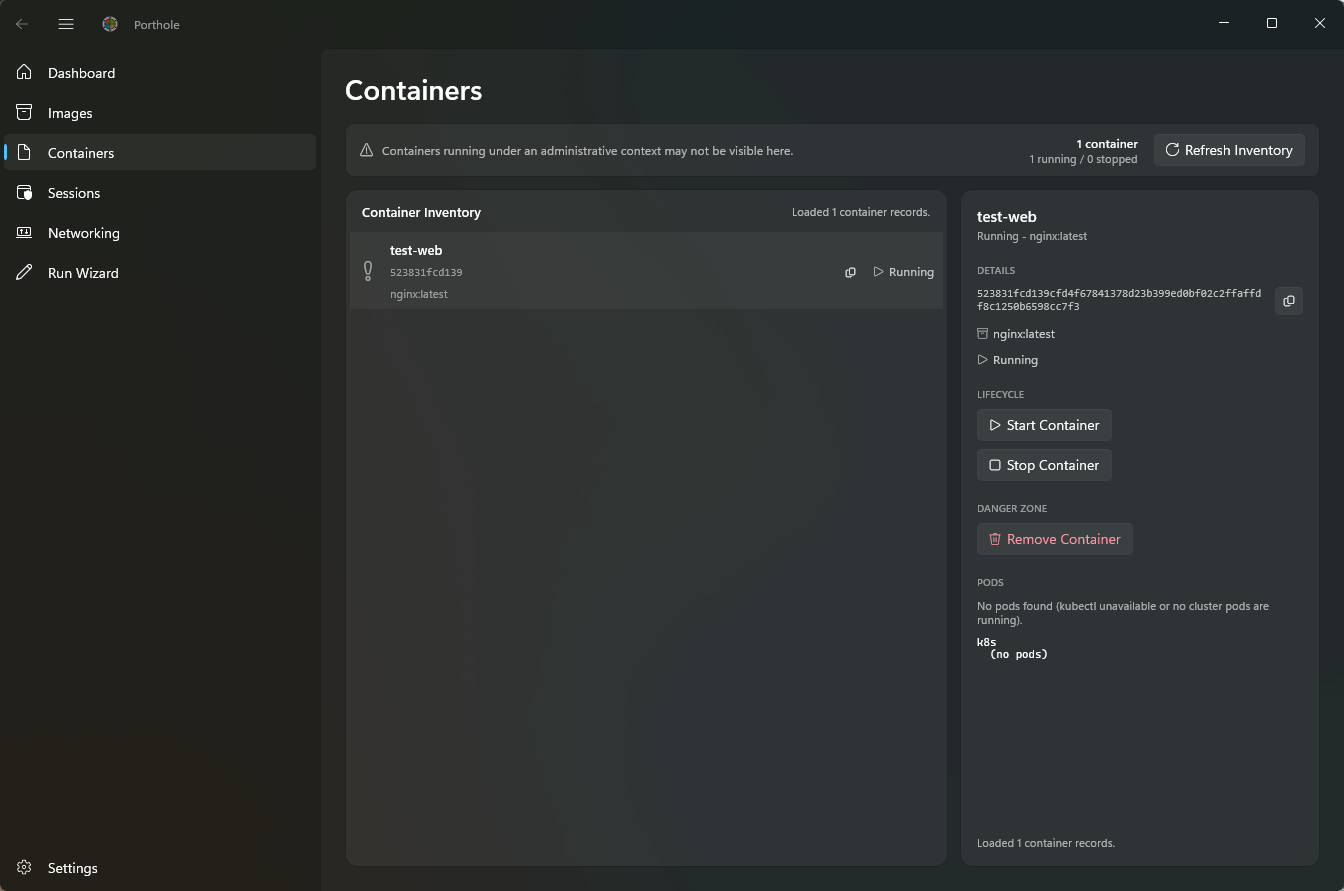
Lifecycle management for running containers:
- Start/Stop: manage container state
- Remove: delete containers (with safety confirmation)
- Inspect: view container details (ID, image, status, ports)
- Logs: view recent container output (future)
VS Code Integration
Porthole integrates with both major VS Code container workflows:
- Containers Extension: connects through the tray-hosted Docker-compatible API bridge
- Dev Containers Extension: uses the
porthole-cliDocker CLI shim for compatibility-critical commands - Session-aware Routing: session-scoped
wslc --session <name>calls keep VS Code operations pinned to the intended workload context - Configurable Setup: supports explicit
DOCKER_HOSTanddev.containers.dockerPathsettings for predictable extension behavior
See docs/vscode-integration.md for supported API calls, VS Code settings.json examples, troubleshooting steps, and outstanding compatibility work.
Networking
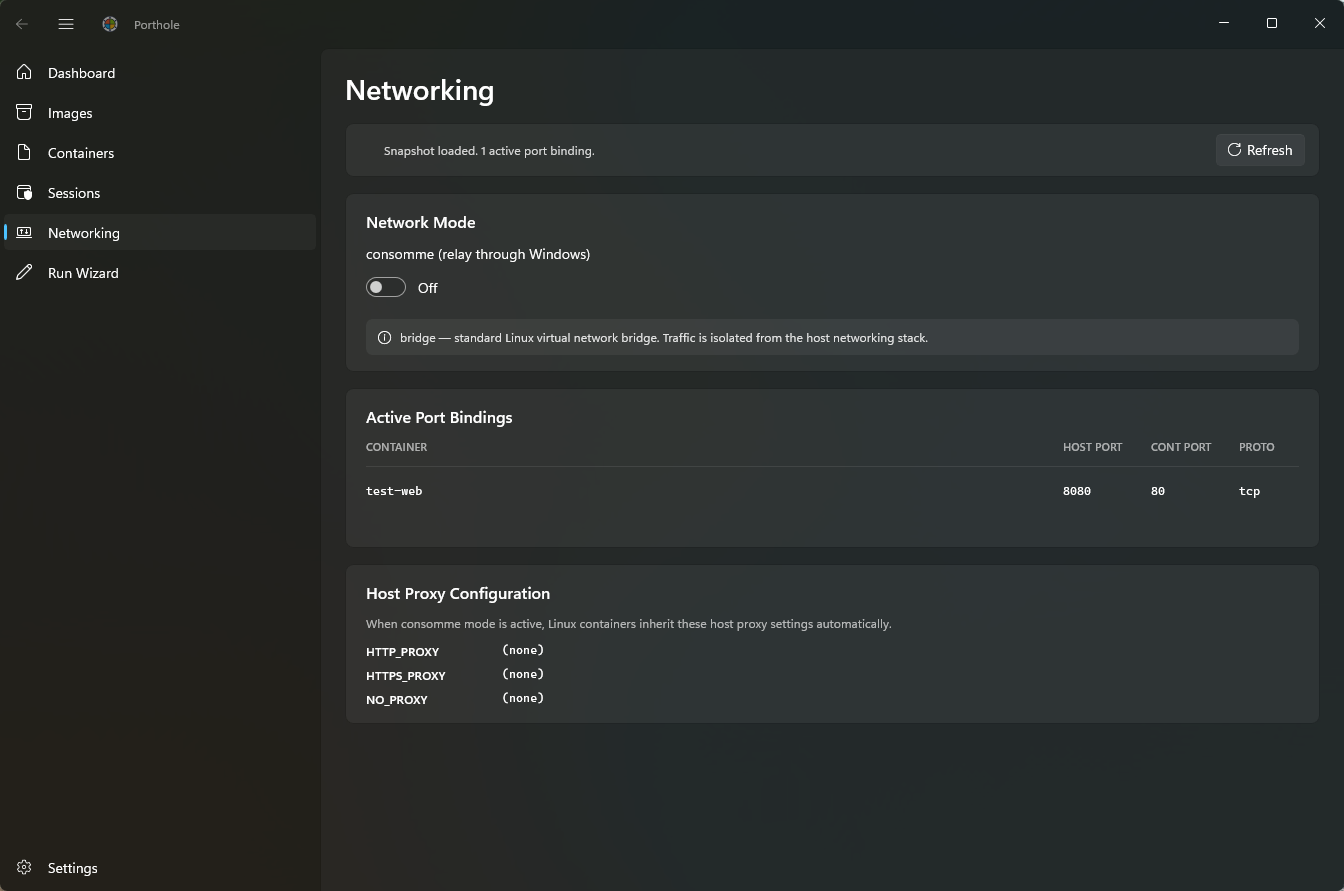
Inspect and configure container networking in the active session:
Network Mode Toggle
- Bridge: Containers are connected to a default bridge network (standard Docker mode)
- Consomme: Experimental mode for specialized networking scenarios
Active Port Bindings
- Real-time display of all port mappings from running containers
- Shows host port, container port, and protocol (tcp/udp)
- Auto-discovered via
wslc inspect— no manual configuration needed - Useful for debugging port conflicts and validating expose declarations
Proxy Configuration
- Reads host Windows proxy settings from environment variables (HTTP_PROXY, HTTPS_PROXY, NO_PROXY)
- Displays effective proxy configuration for container operations
- Helps diagnose proxy-dependent workloads (artifact downloads, registry access, etc.)
Volume Management
Inspect storage attached to the active session, including both named volumes and host-path bind mounts:
Volume Inventory
- Lists named volumes returned by
wslc volume ls - Discovers bind mounts by inspecting containers in the active session
- Shows source path, container target path, driver label, access mode, usage state, and throughput class
- Flags Windows host-path mounts as virtiofs-backed shared mounts
Volume Operations
- Create Volume: create a new named volume in the active session
- Delete Volume: remove an unused named volume with confirmation
- Prune Volumes: remove unused named volumes in bulk
- Bind mounts are shown for visibility and telemetry, but are not deleted from the Volumes page
Run Wizard Integration
- Volume mounts entered in the wizard are annotated as named volumes, virtiofs host mounts, or 9P-style Linux/WSL path mounts
- A host-folder picker can prefill bind mounts for Windows paths
See docs/volume-management.md for behavior details and limitations.
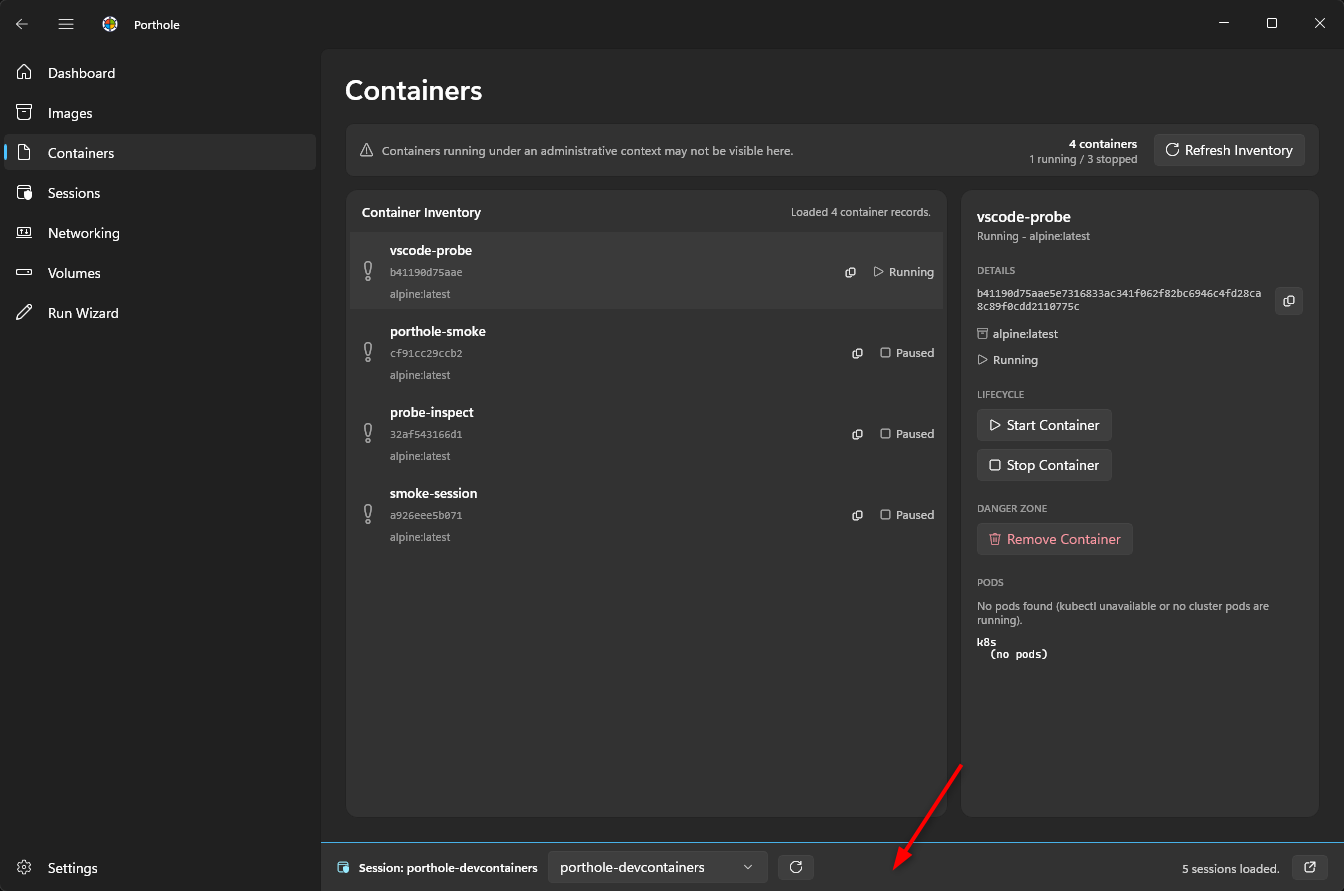
Sessions
Isolated container environments for multi-tenant and workload grouping. Create named sessions to group containers, switch between them, and keep workloads separate. The (Default) session represents pre-existing containers in the unnamed WSL session.
Key Features:
- Create, switch, and delete named sessions
- View active session status and storage location
- Session-aware operations for all container and image management
- Automatic discovery of the
(Default)session when containers exist
📖 For comprehensive session management documentation, see Session Management
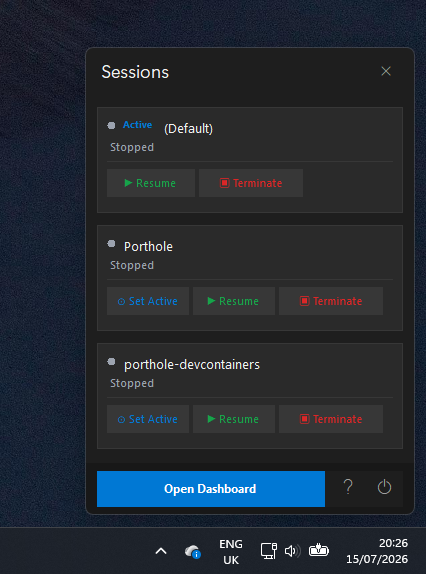
Tray Flyout Quick Switch
The tray flyout provides a fast way to review and manage sessions without opening the full dashboard.
Quick actions:
- Open the flyout with a left-click or right-click on the tray icon
- See session status at a glance
- Set a session as active
- Pause, resume, or terminate sessions
- Open the full dashboard when deeper changes are needed
Run Wizard
Interactive guided flow for creating a container configuration and starting it:
Wizard Start
- Choose Use Template File to load a saved JSON template
- Choose Create New to start from an empty configuration
Configuration Steps
- Step 1: Basic settings (container name, image, optional startup command)
- Step 2: Advanced settings (port mappings, environment variables, volume mounts)
- Step 3: Review and run
Volume Mount Guidance
- Windows host paths such as
C:\data:/app/dataare labeled as virtiofs-backed bind mounts - Linux or WSL paths such as
/mnt/c/data:/app/dataare labeled as 9P-style host sharing - Named volumes such as
myvolume:/app/datastay inside the active session storage
Run Actions
- Primary action: Save Template and Run
- Secondary action: Run Without Saving from split-button menu
Template Format & Versioning
- Newly saved templates use a versioned envelope format:
{
  "version": 2,
  "container": {
    "name": "web",
    "imageReference": "nginx:latest",
    "startupCommand": null,
    "portMappings": ["8080:80"],
    "environmentVariables": ["ENV=prod"],
    "volumeMounts": ["C:\\data:/app/data"]
  },
  "savedAtUtc": "2026-07-05T11:42:52.0000000+00:00"
}
- The loader supports:
- Legacy unversioned templates (raw container fields at root)
- Versioned templates (v1 and v2)
- Compatibility aliases for config payload location (
containerorconfig)
Default Template File Naming
- Save picker suggests:
porthole-<imagename>-ddmmyyhhss.json - Example:
porthole-nginx-0507261142.json
Settings & About
Settings now includes both runtime app preferences and project metadata in one place:
Appearance
- Theme selector for
System default,Light, andDark - Theme changes are applied live to the current app window
- Caption button foreground fallback keeps close/minimize/maximize glyphs readable in both light and dark themes
About
- Theme-aware logo swap (
portholelogowithname.svgandportholelogowithname-dark.svg) - Version line in the format
vX.Y.ZorvX.Y.Z (<metadata>)when build metadata is available - Quick links for repository, license, issues, and releases
Installation
Windows Package Manager (winget)
Porthole is available on Windows Package Manager. Install with:
winget install celloza.Porthole
To upgrade an existing installation:
winget upgrade celloza.Porthole
[!NOTE] Current Porthole releases on winget are pre-release (
-alpha) builds, sowinget upgrade celloza.Portholecan reportNo applicable upgrade found.When updating, install the target pre-release version explicitly instead:winget install celloza.Porthole --version <version> --architecture x64 --forceReplace
<version>with the pre-release version you want to install, for example0.0.10-alpha.
Manual Installation (MSI)
Alternatively, download the .msi installer from GitHub Releases and run it directly.
Developer Documentation
For architecture, building from source, and contribution guidelines, please visit our GitHub Pages Documentation.