porthole
Session Management
Overview
Porthole supports isolated container environments through sessions. A session is a separate namespace managed by the WSL Containers runtime that groups containers, images, and volumes together.
Each session can have its own:
- Container images
- Running and stopped containers
- Named volumes
- Network configuration
Session Types
Named Sessions
Named sessions are created explicitly by the user with a custom name. They are the most common type of session in Porthole.
Characteristics:
- User-defined name (e.g., “myapp”, “Porthole”, “porthole-devcontainers”)
- Persistent storage directory:
%LOCALAPPDATA%\Porthole\Sessions\<SessionName> - Can be created, switched, and deleted
- Managed by the WSL Containers SDK (
Sessionclass) - Commands use
--session <name>parameter:wslc --session myapp list
Example:
# List containers in a named session
wslc --session myapp container list

# Run a container in a named session
wslc --session myapp container create --image nginx:latest --name web
The (Default) Session
The (Default) session represents the unnamed default WSL Containers session managed by the WSL runtime.
Characteristics:
- No user-defined name (internal representation:
(Default)) - No local filesystem storage directory (storage is managed by WSL)
- Cannot be created or deleted
- Commands use no
--sessionparameter:wslc list(notwslc --session Default list) - Represents pre-existing containers created with
wslcbefore Porthole was installed - Storage path displays as
(default)in the UI to indicate WSL-managed storage
When it appears:
- On first run: If existing containers are detected in the default unnamed session
- On upgrade: If Porthole’s session registry is cleared and the app discovers containers in the default session during re-initialization
- Example scenario: You have a
stirling-pdfcontainer running from a previouswslcsession, and Porthole detects it on first run
Commands in the (Default) session:
# List containers in the default unnamed session
wslc container list

# Run a container in the default session
wslc container run --image nginx:latest

# Stop a container in the default session
wslc container stop <container-name>

# Note: No --session parameter is used
Session Lifecycle
Creating a Session
Use the Sessions page in Porthole to create a new named session. The UI will:
- Prompt for a session name
- Create the session storage directory
- Initialize the session with the WSL Containers SDK
- Optionally switch to the new session as active
Switching Sessions
The active session determines which session receives all container, image, and volume operations.
Switching behavior:
- All operations (container start/stop, image pull, volume create, etc.) target the active session
- Switching sessions immediately updates the containers, images, and volumes displayed
- The active session name is displayed in the app header and session indicator
How to switch:
- Use the Sessions dropdown in the top-right of the window
- Click the session selector in the session toolbar
- Open the Sessions page and click on a session to make it active
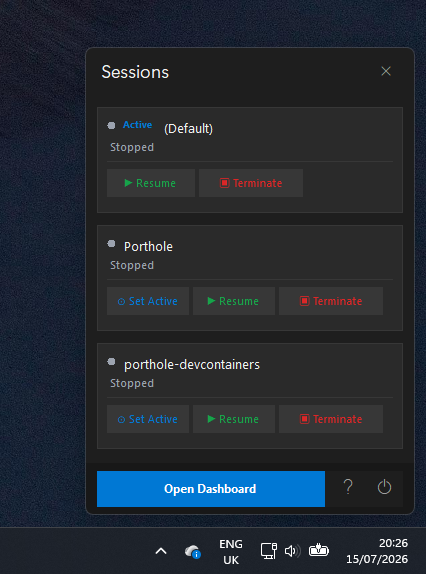
Quick Switch from Tray Flyout
For faster day-to-day switching, you can use the tray flyout without opening the full dashboard.
How to open:
- Left-click or right-click the Porthole tray icon
What you can do:
- View all known sessions and their current status
- Set any session as active
- Pause, resume, or terminate sessions directly from the flyout
- Open the full dashboard for deeper management
Deleting a Session
Deleting a session removes:
- All containers in that session
- All images in that session (if not used by other sessions)
- The session’s storage directory
Constraints:
- Cannot delete the currently active session (must switch to another session first)
- Cannot delete the
(Default)session (it’s managed by WSL and may have system-managed containers) - Requires confirmation to prevent accidental data loss
Session Selection on First Run
When Porthole starts for the first time (or when the session registry is missing), it discovers available sessions using this priority:
- Other named sessions (not porthole-devcontainers, not (Default)) — alphabetically first
- The (Default) session — if it has containers
- First discovered named session — alphabetically
- porthole-devcontainers — hardcoded fallback if nothing else exists
Example scenarios:
| Existing Sessions | Active Session (First Run) |
|---|---|
(Default) with stirling container only |
(Default) |
Porthole, porthole-devcontainers |
Porthole (first alphabetically) |
(Default), Porthole, porthole-devcontainers |
Porthole (other named sessions preferred) |
| None | porthole-devcontainers (created on demand) |
Session Persistence
Session Registry
Session information is persisted to a JSON file at:
%LOCALAPPDATA%\Porthole\sessions.json
Registry content:
{
  "activeSessionName": "(Default)",
  "knownSessionNames": ["(Default)", "Porthole", "porthole-devcontainers"]
}
What’s persisted:
- Active session name (survives tray restarts)
- Known session names (discovered named sessions + (Default) if it has containers)
Session Container Storage
Container state for each session is managed by the WSL Containers SDK:
- Named sessions: Stored in
%LOCALAPPDATA%\Porthole\Sessions\<SessionName> - (Default) session: Stored in WSL-managed storage (no Porthole directory)
Implementation Details
Constants
UnnamedDefaultSessionName = "(Default)"— representation of the unnamed default sessionDefaultActiveSessionName = "porthole-devcontainers"— fallback default if no other session exists
Backend Behavior
Detecting the (Default) session:
// On first run or registry reset, check for existing containers in default session
bool HasDefaultUnnamedSessionOnFirstRun()
{
    try
    {
        string json = RunProcessCommandAsync("wslc", "container list --all --format json", CancellationToken.None)
            .GetAwaiter().GetResult();
        var containers = JsonSerializer.Deserialize<List<ContainerListItem>>(json, JsonOptions);
        return containers is { Count: > 0 };
    }
    catch { return false; }
}
Command building:
// When building wslc commands, check if using (Default) session
private static string BuildSessionScopedWslcArguments(string sessionName, string arguments)
{
    if (string.IsNullOrWhiteSpace(sessionName) ||
        sessionName.Equals(UnnamedDefaultSessionName, StringComparison.OrdinalIgnoreCase))
    {
        // Use unnamed default session (no --session parameter)
        return arguments;
    }

    return $"--session {EscapeCliArgument(sessionName.Trim())} {arguments}";
}
Session initialization:
// (Default) session doesn't need SDK initialization
private void EnsureSessionInitialized(string sessionName)
{
    if (sessionName.Equals(UnnamedDefaultSessionName, StringComparison.OrdinalIgnoreCase))
    {
        // WSL manages the default session, just track it
        _sessionSettings[sessionName] = GetSessionStoragePath(sessionName);
        return;
    }

    // For named sessions: create SDK instance, initialize, etc.
    ...
}
Test Isolation
Tests use skipDefaultSessionDetection = true in the WslcBackendService constructor to prevent detecting the real system’s default session during unit tests.
Common Use Cases
Scenario: Separate dev and prod environments
Create two named sessions:
- Session “dev”: for development containers (databases, APIs, etc.)
- Session “prod”: for production/staging containers
Switch between them to keep workloads isolated.
Scenario: Migrating existing containers
If you have containers in the (Default) session and want to move them to a named session:
- Create a new named session in Porthole
- Export containers from (Default):
docker export <container> - Import to new session: use the Run Wizard or
wslc --session <new> run - Remove old containers from (Default):
wslc container rm <container>
Scenario: DevContainers integration
The porthole-devcontainers session is configured to work with VS Code’s DevContainers extension. When opening a DevContainer, it automatically uses this session.
Troubleshooting
Session not appearing
Issue: You created a container with wslc but it doesn’t appear in Porthole.
Solution:
- Check which session it’s in:
wslc container list --all(default session) orwslc --session <name> container list(named session) - If in the default session, Porthole will discover it on next restart (or manually clear
%LOCALAPPDATA%\Porthole\sessions.jsonand restart)
Can’t delete the (Default) session
Issue: The UI doesn’t allow deleting (Default).
Solution: The (Default) session is managed by WSL and cannot be deleted from Porthole. To remove containers from it, use:
wslc container rm <container-name>
Active session reverts after restart
Issue: You switch to a session, but after restarting the tray, the previous session is active again.
Solution: This is expected behavior. The active session is persisted to %LOCALAPPDATA%\Porthole\sessions.json. If that file was deleted or corrupted, Porthole will re-initialize and select a session based on discovery priority (see “Session Selection on First Run”).
To manually set the active session, edit the registry file (not recommended for normal use).